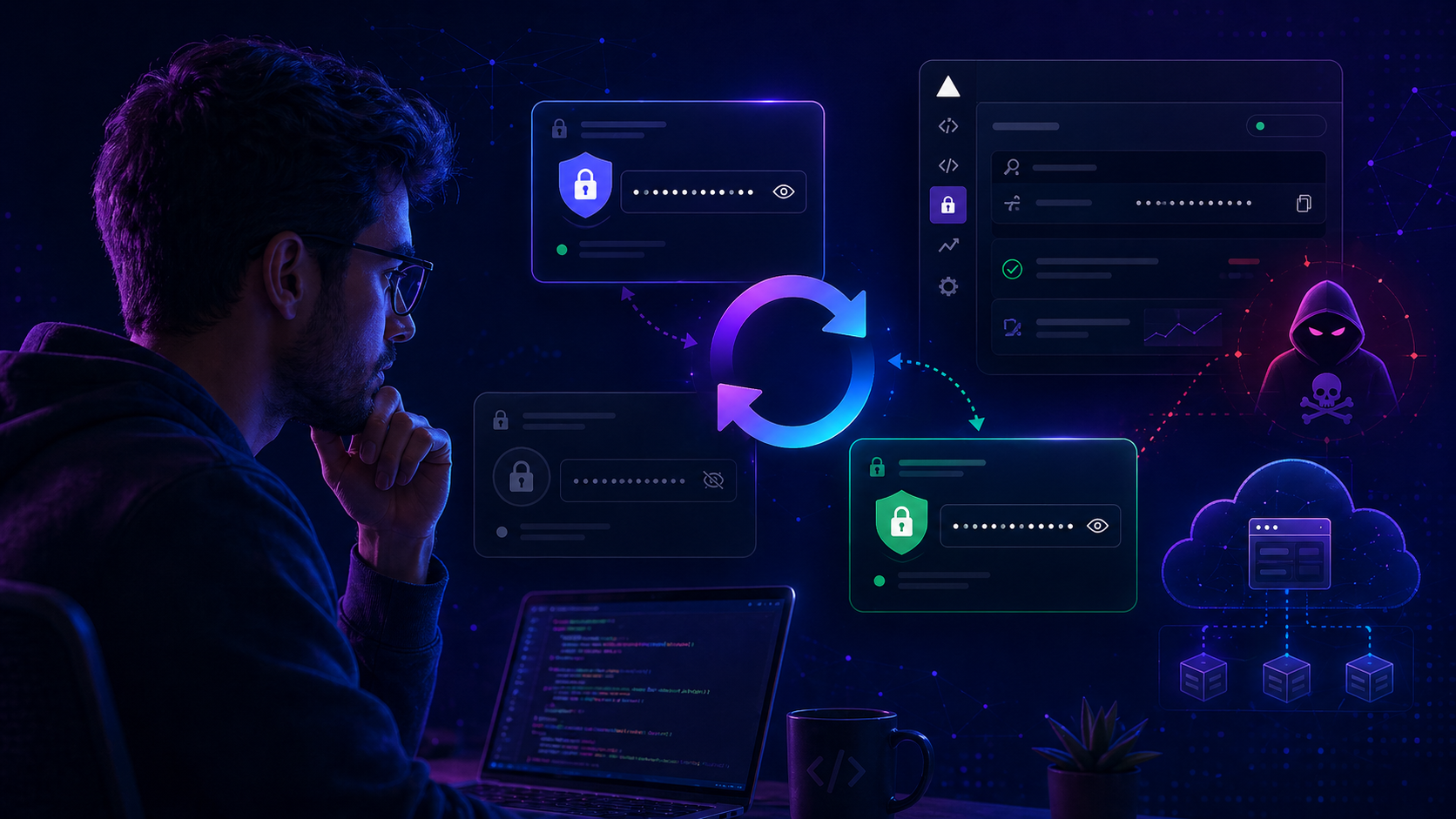
In April 2026, Vercel published a security bulletin confirming unauthorized access to certain internal Vercel systems. According to Vercel, a limited subset of customers had non-sensitive environment variables compromised, meaning variables that could decrypt to plaintext may have been accessed. Vercel recommended rotating potentially exposed credentials.
For SitecoreAI implementations hosted on Vercel, this is especially important if your application stores the Sitecore Experience Edge Delivery API token in a Vercel environment variable, commonly named something like SITECORE_API_KEY
If this variable was not configured as Sensitive in Vercel, it should be treated as potentially exposed and rotated as a precaution. Vercel states that Sensitive environment variables are stored in a non-readable format once created and are intended to protect values such as API keys.
This guide explains how to:
- Identify the current Sitecore Delivery API token.
- Validate it in the GraphQL IDE.
- Generate a new Delivery API token using the Sitecore Token API.
- Update the token in Vercel as a Sensitive environment variable.
- Redeploy the Vercel application.
- Revoke the old token.
- Validate that the old token no longer works and the new one does.
Important: Execute this procedure first in QA before applying it to Production.
Prerequisites
Before starting, make sure you have:
- Access to SitecoreAI Cloud Portal.
- Access to SitecoreAI Deploy app.
- Permission to create Edge administration credentials.
- Access to the target Vercel project.
- Access to Postman or another API client.
- The current Vercel environment variable name used by your app
Let’s start!
1. Get the Current Delivery API Token
First, obtain the existing Delivery API token from the SitecoreAI Deploy app.
Sitecore documentation confirms that an Edge token can be generated from the Deploy app by going to the project environment and clicking Details > Generate Delivery API token.
Steps
- Log in to Sitecore Cloud Portal.
- Open the Deploy app.
- Go to the Projects tab.
- Select the target Project and Environment.
- Open the Details tab.
- Click Generate Delivery API Token for Live GraphQL IDE / Experience Edge.
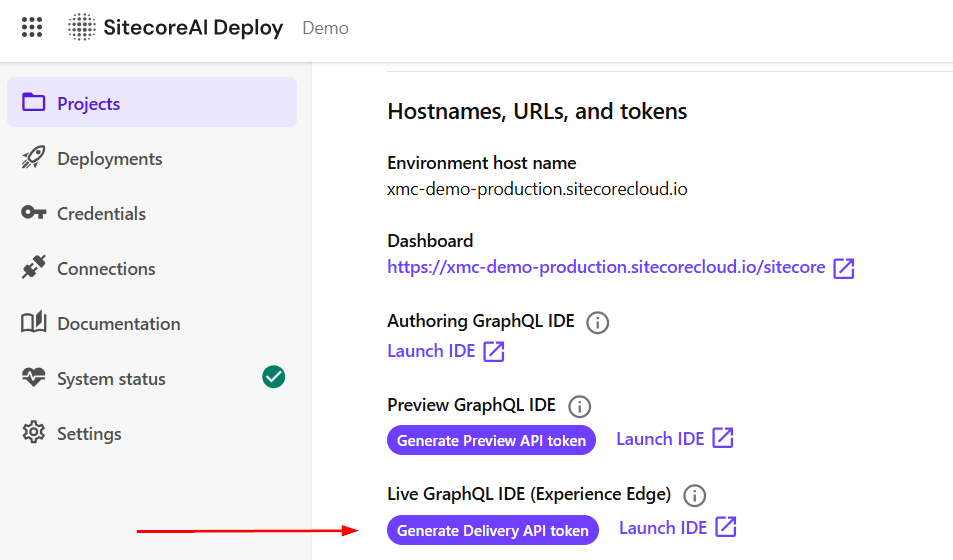
In our testing, clicking Generate Delivery API Token repeatedly did not rotate the token. The same token was returned each time. This is useful for retrieving the current token, but it should not be treated as a rotation mechanism.
Copy the current token and store it temporarily in a secure location. You will use it later to validate the current behavior and then revoke it.
2. Test the Current Delivery Token in the GraphQL IDE
From the same SitecoreAI environment page, click Launch IDE. This opens the Experience Edge GraphQL IDE.
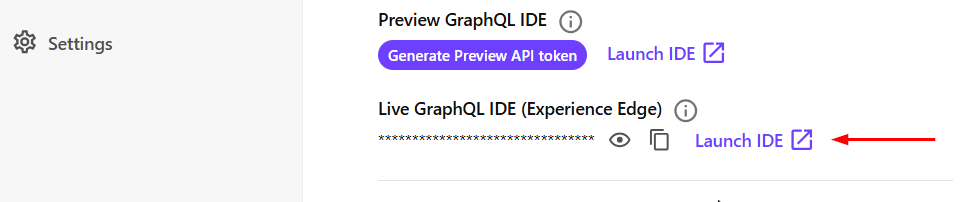
The URL is usually:
https://edge.sitecorecloud.io/api/graphql/ideSitecore documentation notes that the Delivery API is a GraphQL API used to access approved and published content from Experience Edge, and the Delivery API playground can be used to test published content.
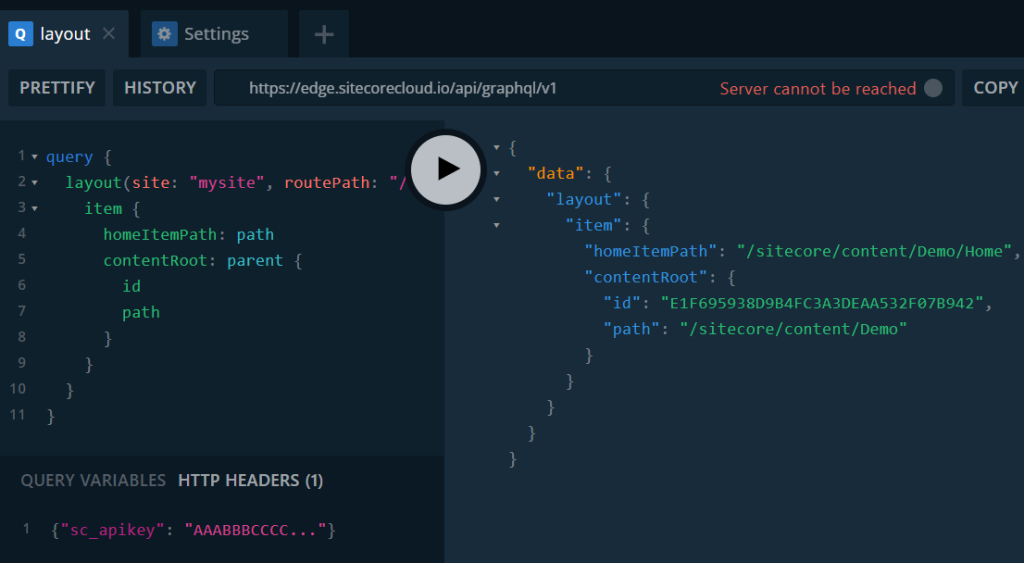
Use the following query to get the root item of a site:
query {
  layout(site: "mysite", routePath: "/", language: "en") {
    item {
      homeItemPath: path
      contentRoot: parent {
        id
        path
      }
    }
  }
}
Replace: “mysite” with your actual Sitecore site name.
Set the following header in the GraphQL IDE:
{
  "sc_apikey": "AAABBBCCCC..."
}
Click Run.
If the token is valid and the site name is correct, the response should return the root item information.
3. Generate a New Delivery API Token
To rotate the Delivery API token, use the Sitecore Token API. Documentation here:
https://doc.sitecore.com/sai/en/developers/sitecoreai/token-api.htmlThe Sitecore Token REST API manages API keys used to access the Delivery API. These keys are long-lived and remain valid until they are revoked.
The Token API base URL is:
https://edge.sitecorecloud.io/api/apikey/v1Sitecore also documents that Token API requests require Bearer authorization using a JWT generated from an Edge administration client.
3.1 Create Edge Administration Credentials
In SitecoreAI Deploy:
- Click Credentials.
- Go to the Environment tab.
- Click Create Credentials.
- Select Edge administration.
- Enter a Label.
- Enter a Description.
- Select the target Project.
- Select the target Environment.
- Create the credentials.
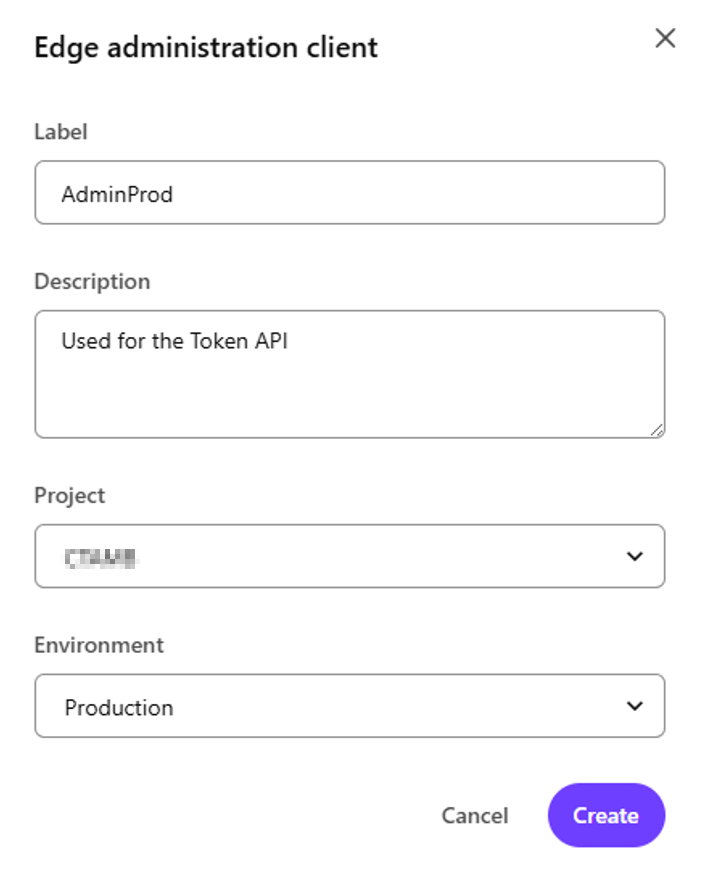
After creation, Sitecore displays a modal with the credentials.
Copy both values immediately:
Client ID
Client Secret
The secret is shown only once.
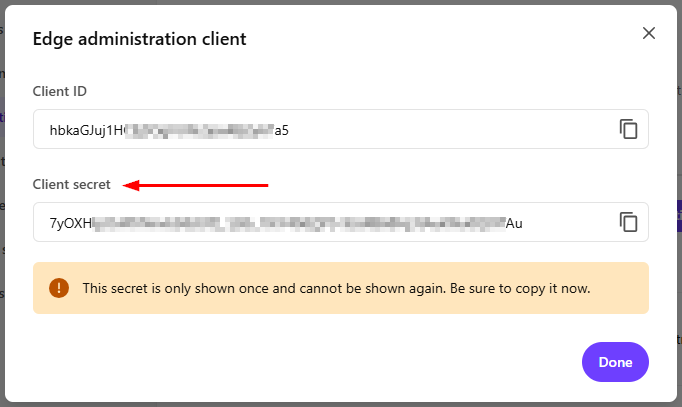
For QA and Production, create separate credentials for each environment. A QA token should be generated using QA credentials, and a Production token should be generated using Production credentials.
3.2 Generate an Auth Token in Postman
Create a new request in Postman:
POST https://auth.sitecorecloud.io/oauth/tokenGo to Body and select:
x-www-form-urlencodedAdd the following values:
audience: https://api.sitecorecloud.io
grant_type: client_credentials
client_secret: hBkaGjuj1H...
client_id: 7YQXH...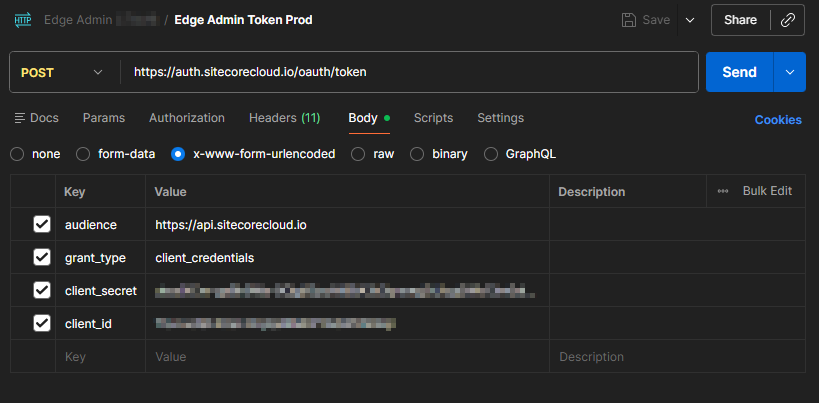
Click Send.
The response should include an access_token.
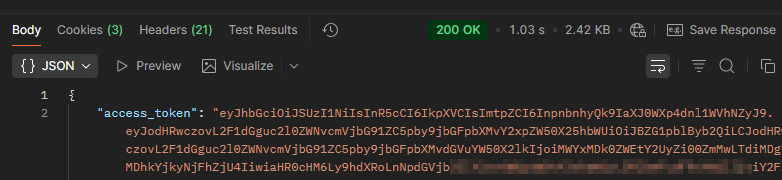
Copy that value.
You will use it as a Bearer token in the next requests.
3.3 Create a New Delivery API Token
Create another request in Postman:
POST https://edge.sitecorecloud.io/api/apikey/v1/In the Auth tab:
Type: Bearer Token
Token: 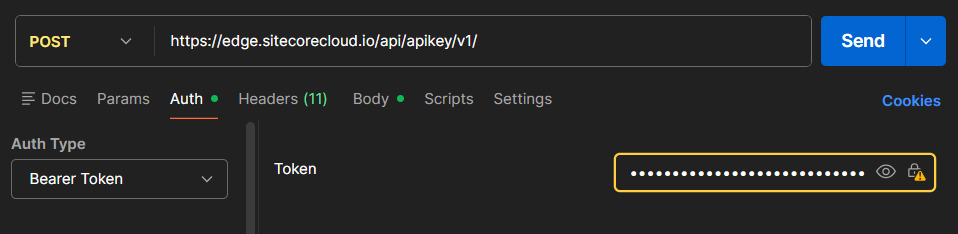
In the Body, select raw and JSON, then use:
{
  "CreatedBy": "youremail",
  "Label": "Production Delivery API Key - Rotated April 2026 - youremail",
  "Scopes": ["content-#everything#","audience-delivery","audience-preview"]
}
Sitecore documents that the Create endpoint generates an API key and returns the API token as a base64 string.
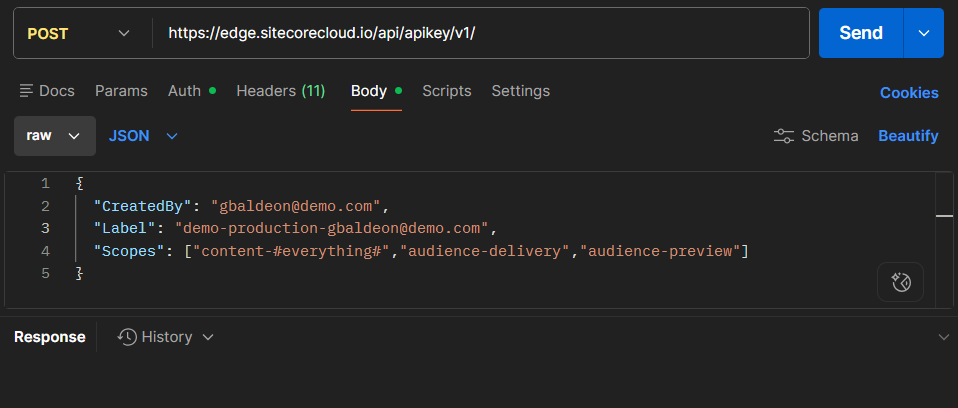
Click Send.
The response is the new API token.
Example response:
MTQ0NjJkZmQ5OTM2NDE1ZTZjNGZmZjI3...Store this new token securely. This is the new value that will replace the old SITECORE_API_KEY in Vercel.
3.4 Validate the New Delivery API Token in the GraphQL IDE
Go back to the Experience Edge GraphQL IDE:
https://edge.sitecorecloud.io/api/graphql/ideUse the same query as before:
query {
  layout(site: "mysite", routePath: "/", language: "en") {
    item {
      homeItemPath: path
      contentRoot: parent {
        id
        path
      }
    }
  }
}
Update the header with the new token:
{
  "sc_apikey": "MTQ0NjJkZmQ5OTM2NDE1ZTZjNGZmZjI3..."
}
Click Run.
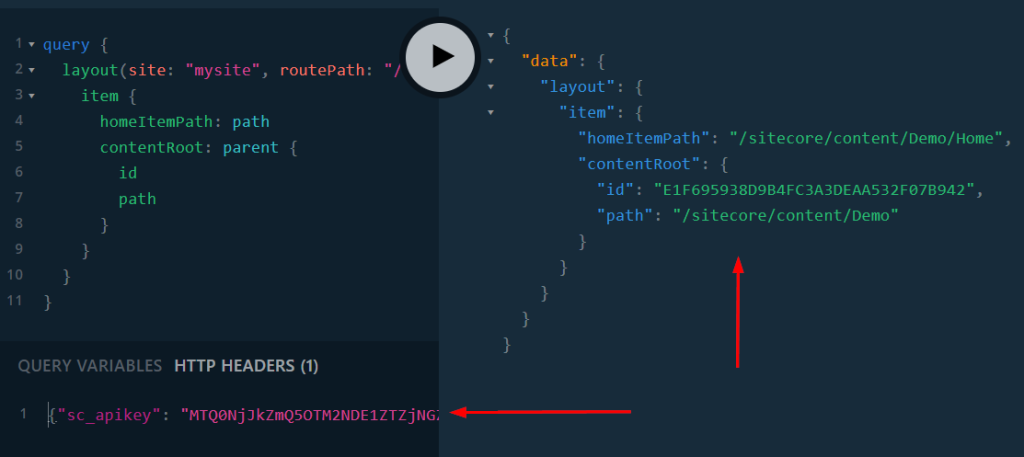
Expected result: the query should return the root item successfully.
At this point, the new Delivery API token is valid, but the application is not using it yet.
4. Update the Environment Variable in Vercel
Now update the Vercel environment variable used by the application.
In this example, the variable is:
SITECORE_API_KEYSteps
- Open the target Vercel Project.
- Go to Settings.
- Open Environment Variables.
- Search for:
SITECORE_API_KEY- Select the correct environment, for example:
Production- Click Edit.
- Replace the old token with the new Delivery API token.
- Save the value as Sensitive.
Vercel documents that Sensitive environment variables are non-readable once created and are intended for secrets such as API keys.
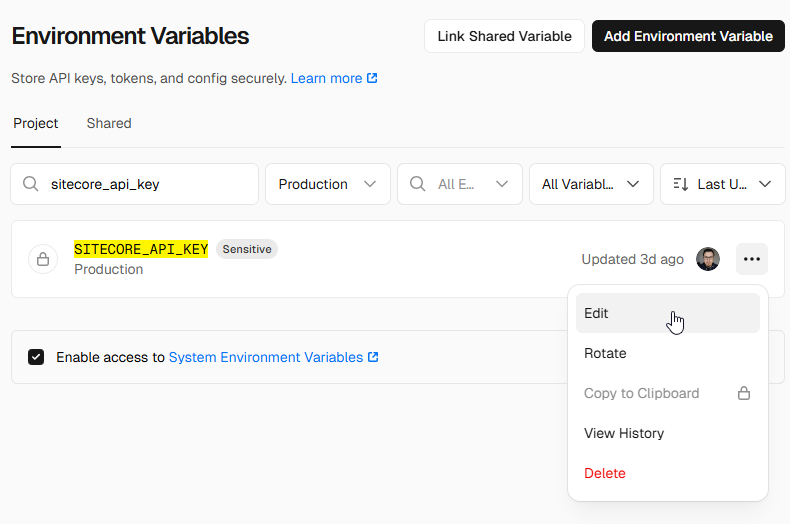
If the existing variable was not Sensitive, remove and recreate it with the Sensitive option enabled if needed. Vercel notes that marking an existing variable as Sensitive requires removing and re-adding it with the Sensitive option enabled.
4.1 Redeploy the Application in Vercel
Updating the environment variable is not enough. The application must be redeployed so the new value is available at runtime or build time, depending on how the variable is consumed.
Steps
- Go to Deployments.
- Identify the latest Production deployment marked as Current.
- Click the three-dot menu.
- Click Redeploy.
- Confirm the redeployment.
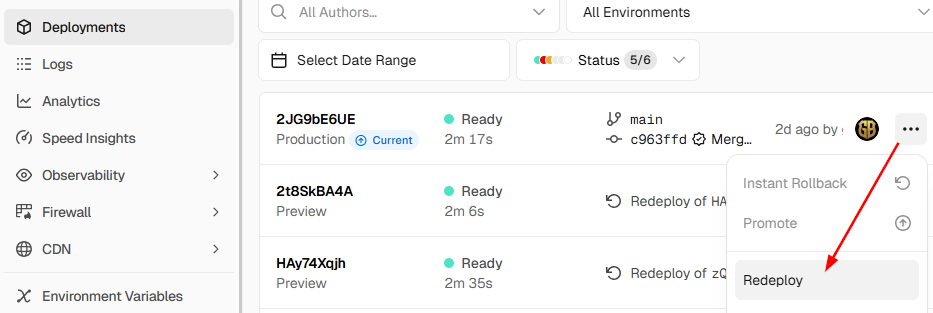
After the redeploy finishes, the application should be using the new SITECORE_API_KEY
5. Revoke the Old Delivery API Token
Once the new token has been validated and deployed, revoke the old token.
This step is important because the old token may have been exposed if it was stored in Vercel as a non-sensitive environment variable. Keeping the old token active would leave an unnecessary security risk.
Sitecore’s Token API includes a RevokeByToken endpoint to revoke an API key identified by its token.
5.1 Revoke the Old Token Using Postman
Create a new request in Postman:
PUT https://edge.sitecorecloud.io/api/apikey/v1/revokebytokenIn the Authorization tab:
Type: Bearer Token
Token:
In the Headers tab, add:
sc_apikey: 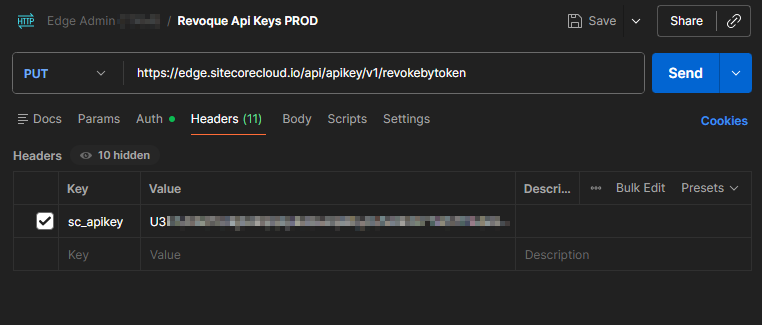
Click Send.
The response is a Boolean value indicating whether the key was revoked successfully.
Expected response:
trueIf the response is true, the old Delivery API token was revoked successfully.
5.2 List Existing Delivery API Keys
To confirm the current status of the Delivery API keys, use the ListAll endpoint.
Create a new request in Postman:
GET https://edge.sitecorecloud.io/api/apikey/v1In the Authorization tab:
Type: Bearer Token
Token:
Click Send.
The response should show the existing API keys and whether they are revoked.
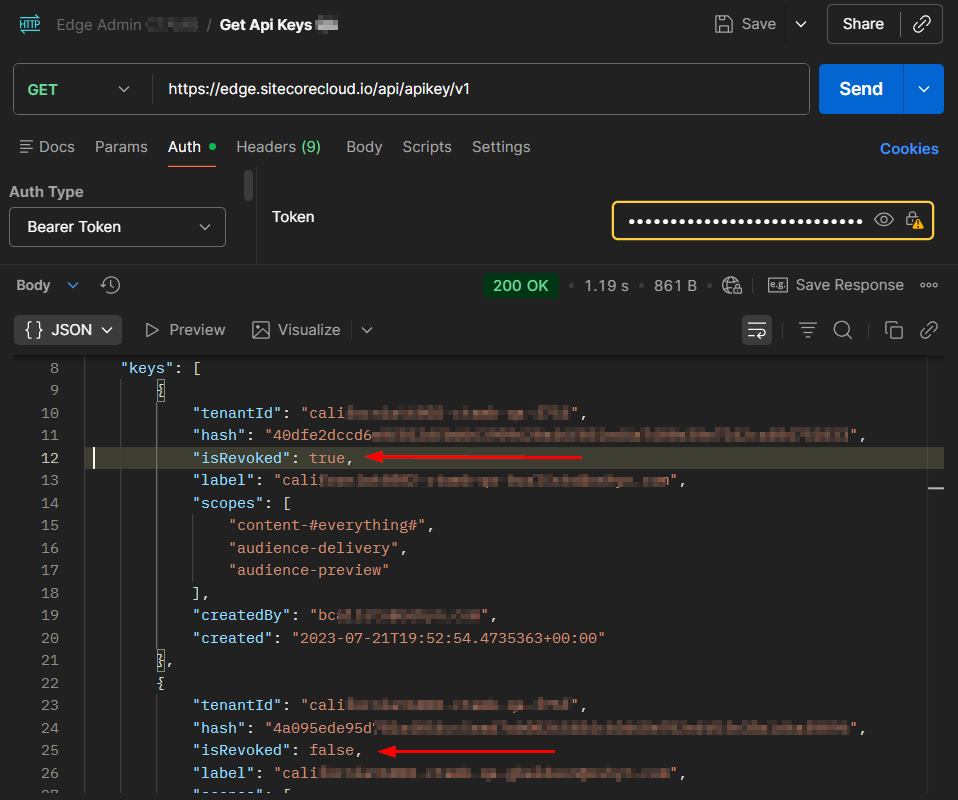
If you want to check QA, generate and use credentials for the QA environment. If you want to check Production, use credentials created for the Production environment.
Important Notes
Run the Procedure in QA First
Always execute this process in QA before Production. Only after QA is validated should the same procedure be applied to Production.
Keep Environment Variables Sensitive in Vercel
Any secret stored in Vercel, including Sitecore API keys, should be configured as Sensitive whenever possible.
Sensitive variables help reduce the risk of exposing plaintext secrets through the Vercel dashboard or API.
Be Careful if Your Site Uses Context ID
At the time of writing this blog, we observed a bug where revoking the Delivery API key also impacted the site’s Context ID, making it inaccessible.
This is important if your SitecoreAI implementation uses the Context ID for GraphQL endpoint queries.
Before revoking the old Delivery API token in Production, validate whether your site or integrations depend on:
Context IDor directly on:
sc_apikeyIf your implementation uses Context ID, test the revocation process carefully in QA first and consider opening a Sitecore Support ticket before applying the change in Production.
Conclusion
Rotating the SitecoreAI Experience Edge Delivery API token is a recommended precaution when the token may have been exposed through a non-sensitive Vercel environment variable.
The safest approach is:
- Retrieve and validate the current token.
- Generate a new token using the Sitecore Token API.
- Validate the new token in the GraphQL IDE.
- Update the Vercel environment variable as Sensitive.
- Redeploy the Vercel application.
- Revoke the old token.
- Confirm that the old token fails and the new token works.
This process reduces the risk of unauthorized access to published content through Experience Edge and aligns with the security recommendations following the Vercel April 2026 incident.