In the first part of this series, we reviewed how to enable Questions & Answers in Sitecore Search, configure the entity and attributes, publish the feature configuration, run batch generation, and review the generated Q&A items inside the Q&A Browser.
Now let’s take the next step: consume those generated answers from the front end and display them in a real search experience.
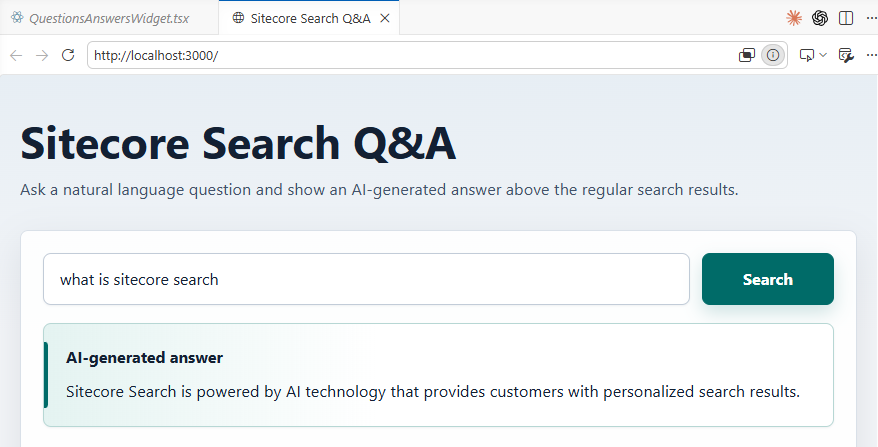
The goal of this post is simple:
- User asks a question
- Next.js sends the query to Sitecore Search
- Sitecore Search returns an AI-generated answer
- The page displays the answer and related questions
According to Sitecore’s official documentation, the Questions & Answers capability lets visitors ask natural language questions and receive AI-generated answers sourced from the content collection and Sitecore Search domain.
What we are building
We will build a simple Q&A experience with:
- Search Page
- Search Input
- AI-generated Answer
- Related Questions
- Search Results / Fallback
The idea is not to replace the existing search page. The best approach is to enhance it by adding a Q&A block above the regular search results.
Before coding: implementation checklist
Before starting the front-end implementation, validate the following:
- Questions & Answers is enabled in Sitecore Search
- A Q&A Group exists
- Batch generation has run at least once
- Generated questions and answers were reviewed
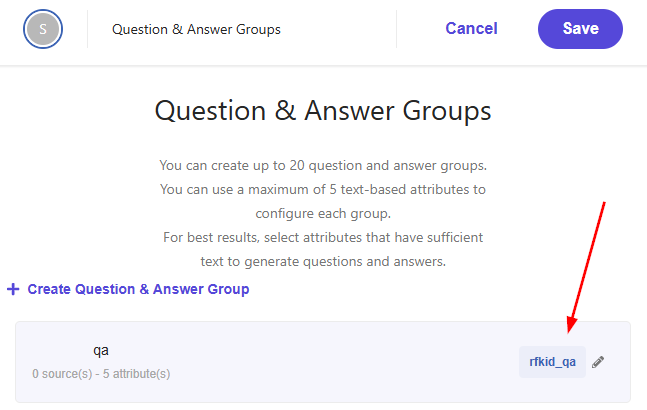
- The Q&A Group has an rfkid
- The Next.js app is ready
- Sitecore Search API credentials are configured
SitecoreAI documentation confirms that the Q&A capability must be configured and batch generation must run at least once. It also states that creating a question and answer group automatically generates the rfkid, which is required to request questions and answers.
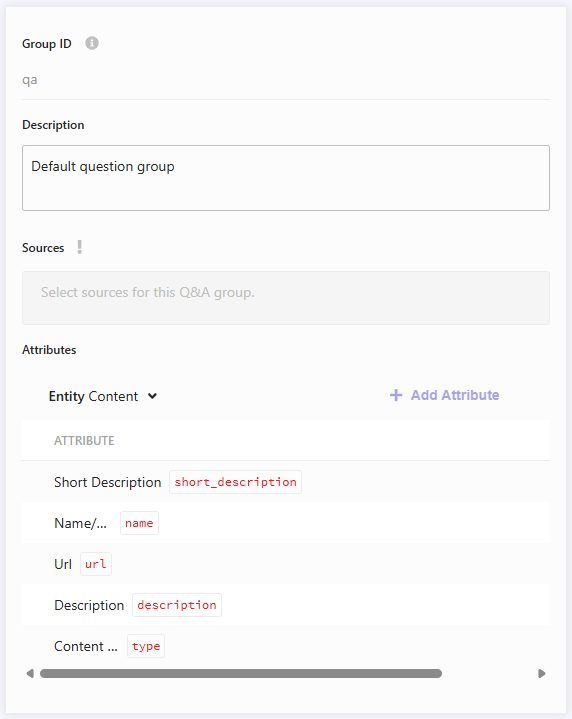
Step 1: Identify the rfkid
The rfkid identifies the Q&A widget/group that the front end will query.
Example:
rfkid_qaor a custom value generated for your Q&A group.
This value is important because your API request must point to the correct Q&A configuration.
Tip: validate the rfkid per environment. Do not assume QA, staging, and production use the same value.
Step 2: Test exact_answer from the API
Sitecore Search exposes Q&A through the Search and Recommendation API using the questions object. Depending on the parameters sent, the API can return either related questions and answers or one exact answer.
Start with an exact answer test.
Example request body:
{
  "widget": {
    "items": [
      {
        "entity": "content",
        "rfk_id": "rfkid_qa",
        "questions": {
          "keyphrase": "What is Sitecore Search?",
          "exact_answer": {
            "include_sources": false,
            "query_types": ["question", "statement"]
          }
        }
      }
    ]
  }
}
Result:
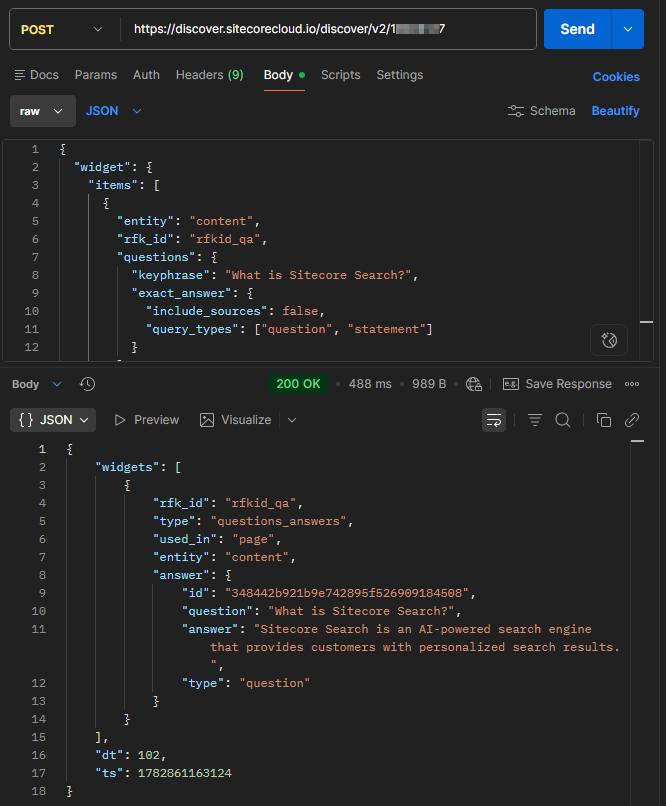
Tip: test first with questions that you know are covered by your indexed content. Sitecore warns that AI-generated answers depend directly on the indexed items in the source being queried. If the indexed content does not match the visitor’s question, the AI will not return useful related responses.
Step 3: Test related_questions from the API
After validating exact_answer, test related_questions.
This is useful for a “People also ask” experience.
Example request body:
{
  "widget": {
    "items": [
      {
        "entity": "content",
        "rfk_id": "rfkid_qa",
        "questions": {
          "keyphrase": "Sitecore Search",
          "related_questions": {
            "limit": 5,
            "include_sources": false
          }
        }
      }
    ]
  }
}
Result:
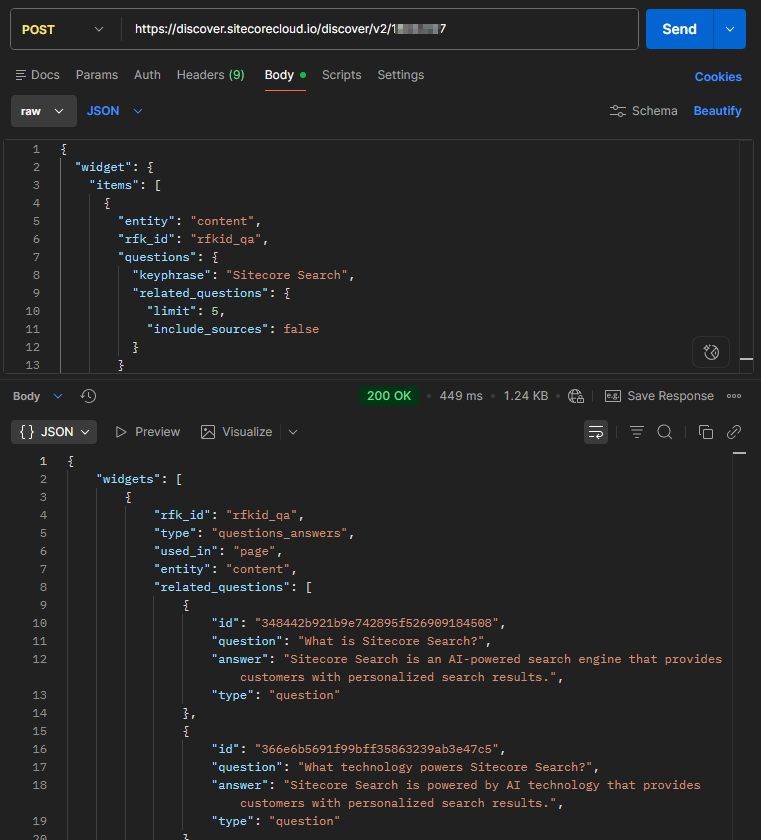
Tip: related questions are great below the main answer because they help users continue exploring without typing a new query.
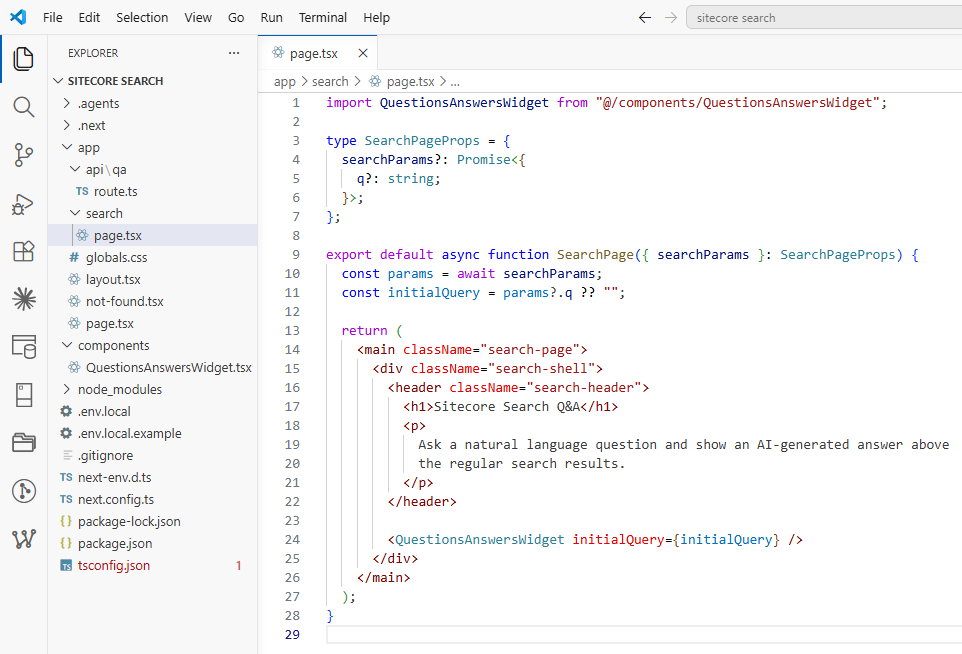
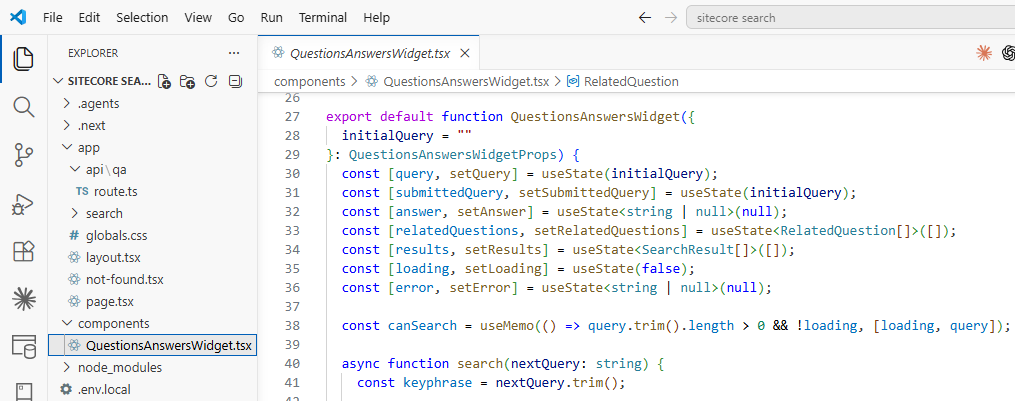
Step 4: Create the Next.js Q&A component
Sitecore provides an official walkthrough to create a questions-answers widget using the Cloud SDK Search package. The walkthrough was tested with Next.js 15, both with Pages Router and App Router.
A simple component structure can look like this:
/components
  └── QuestionsAnswersWidget.tsx

/app/search
  └── page.tsx
The component should handle three states:
1. Loading
2. Answer found
3. No answer found
Example UI logic:
if (loading) {
return Searching for an answer...
;
}
if (!answer) {
return (
No direct answer was found.
Please review the search results below or try a different question.
);
}
return (
AI-generated answer
{answer}
);
Page.tsx
QuestionsAnswersWidget.tsx
Running Aplication:
You can find the complete solution code and instructions here: https://github.com/gabrielbaldeon/sitecore-search-nextjs
Step 5: Display related questions
After rendering the main answer, display related questions below it.
Example:
{relatedQuestions?.length > 0 && (
Related questions
{relatedQuestions.map((item) => (
-
))}
)}Expected result:
The user sees an answer first, then a short list of related questions.
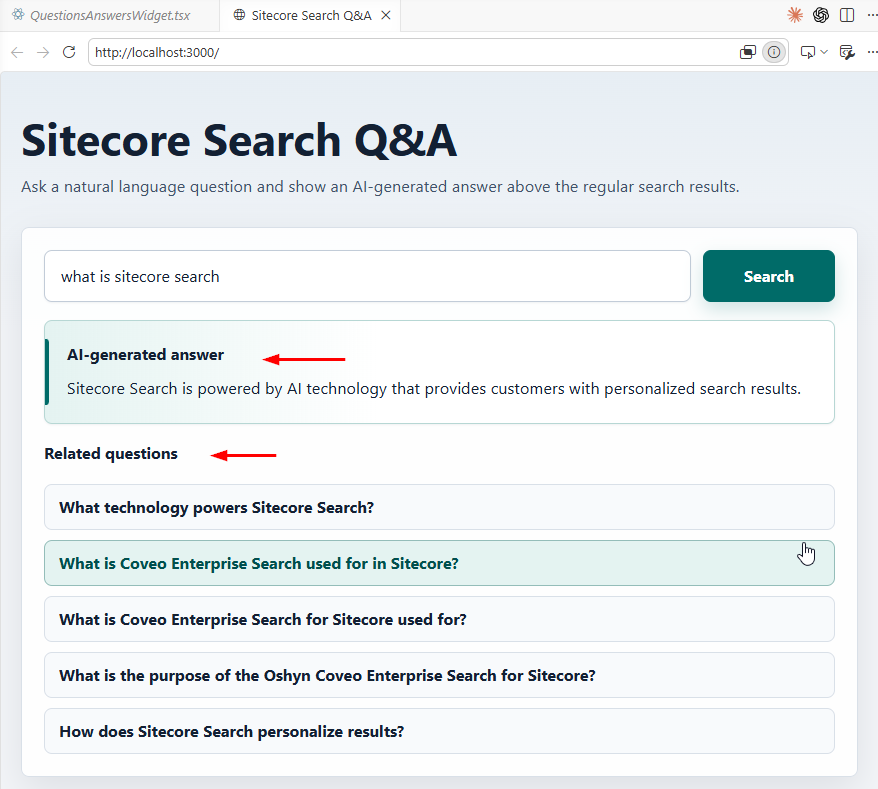
Tip: make related questions clickable. When a user clicks one, send that question as the new keyphrase.
Step 6: Add fallback behavior
Do not assume every query will return an AI-generated answer.
A mature implementation should gracefully fallback to traditional search results.
Example message:
No direct answer was found for this question. Please review the search results below or try a different question.
Recommended fallback behavior:
- Keep regular search results visible
- Show a friendly no-answer message
- Avoid showing an empty AI block
- Log the unanswered question
- Use unanswered questions to improve content
Tip: unanswered questions are valuable. They usually reveal content gaps, indexing issues, or questions users care about but your site does not answer clearly.
Final testing checklist
Before going to production, validate:
- Q&A Group exists and is published
- Batch generation ran successfully
- Generated answers were reviewed
- rfkid is correct
- exact_answer returns data
- related_questions returns data
- Next.js component renders the answer
- Related questions are displayed
- Fallback works when no answer is available
- Regular search results still work
- Browser Network tab shows 200 responses
- No 401/403 errors
- QA and production environment variables are separated
Best practices
- Start small. Use a controlled content source first, such as FAQs, product documentation, support articles, or a knowledge center.
- Review the generated answers before exposing them to end users.
- Keep regular search results as a fallback.
- Use clear and structured source content. Better content produces better answers.
- Track unanswered questions and use them to improve your content strategy.
- Validate rfkid and API credentials per environment.
- Do not expose AI-generated answers without business review in regulated or sensitive industries.
Conclusion
In Part 1, we configured and generated Questions & Answers inside Sitecore Search.
In this Part 2, we connected that configuration to a real implementation flow: testing the API, using exact_answer, using related_questions, rendering the result in Next.js, and adding fallback behavior.
The most important lesson is this: do not treat Q&A as only a front-end feature. A successful implementation depends on good indexed content, correct Q&A configuration, reviewed generated answers, reliable API integration, and a user-friendly fallback experience.
Start small, validate with real questions, and improve the indexed content based on what users are actually asking.