Part 3 of the “Building with Sitecore Content SDK 2 and Next.js” series
In the previous installments of the “Building with Sitecore Content SDK 2 and Next.js” series, we explored the foundations of building an application with Sitecore Content SDK 2 and learned how to create editable components that authors can manage in SitecoreAI Pages.
In this third part, we will move on to personalization. We will explore how SitecoreAI Pages lets us create page variants and define the audiences that should receive them using conditions related to visitor behavior, location, device, date, and campaign information.
First, we will briefly review all the conditions available in the Audience Builder. We will then implement a practical use case: personalizing the FeatureCard component for visitors arriving from a LinkedIn campaign identified by the utm_source=linkedin parameter.
We will create a LinkedIn Visitors variant, assign it an independent datasource, update its image and content, publish it, and verify its behavior in our local Next.js application. We will also cover an important Content SDK 2 configuration required to run personalization during local development.
By the end of this article, we will have two clearly differentiated experiences:
- Visitors accessing the site with utm_source=linkedin will see the personalized content.
- Visitors who do not match this condition will continue to see the default experience
1. Prerequisites and Starting Point
Before we begin, we need a Next.js application connected to a SitecoreAI environment through Sitecore Content SDK 2. We also need access to SitecoreAI Pages and permission to edit and publish pages.
This article continues from the editable component created in the previous installment. In our example, we will use the FeatureCard component, but the same steps can be applied to any component that allows an independent datasource to be assigned to each variant.
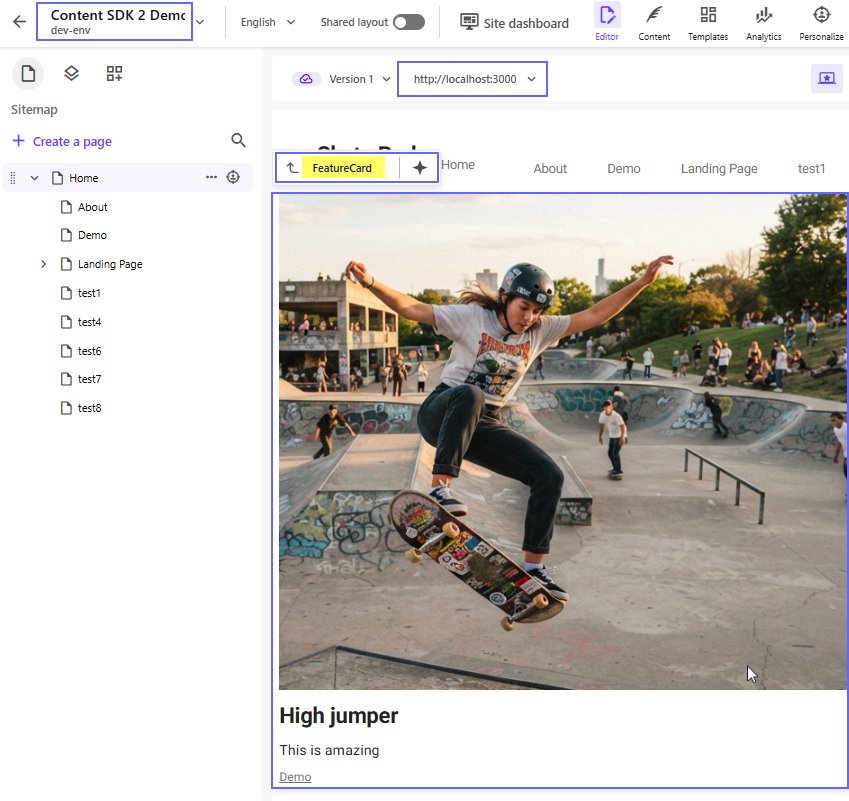
Our demonstration environment uses the following configuration:
- Site: Content SDK 2 Demo
- Environment: dev-env
- Page: Home
- Component: FeatureCard
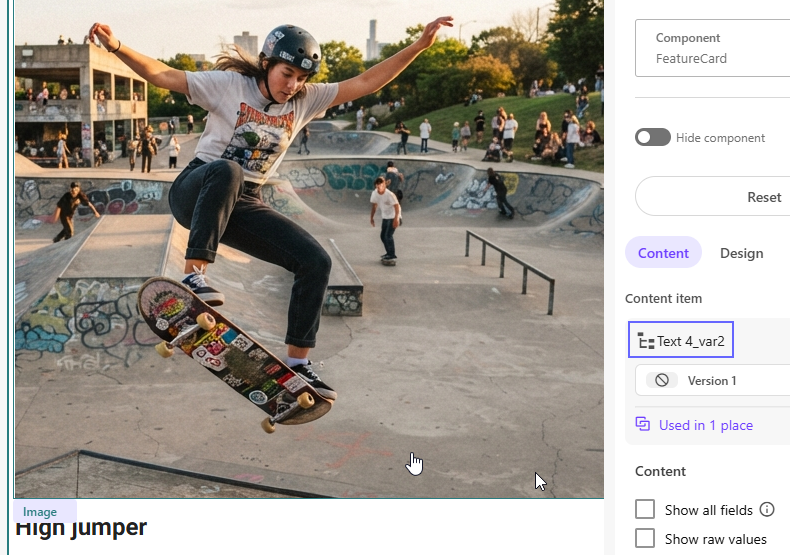
- Initial image: Skate Park
- Initial title: High jumper
- Initial description: This is amazing
The application must also be running locally and accessible at http://localhost:3000. This will allow us to compare the default experience with the personalized variant after publishing it.
The following image shows the component’s initial state before any personalization rules are added.
2. How Personalization Works in SitecoreAI Pages
Personalization in SitecoreAI Pages is based on three main elements: the default experience, variants, and audiences.
The Default experience represents the version shown to visitors who do not meet any personalization condition. It should contain complete and functional content because it serves as the page’s baseline experience.
A variant is an alternative version of the page created for a specific audience. Within a variant, we can modify one or more components, change their datasources, replace images, update text, or hide elements that are not relevant to that audience.
An audience determines which visitors receive the variant. SitecoreAI Pages provides conditions based on information such as browsing behavior, geographic location, device, date, referrer, and UTM parameters.
When a visitor requests a page, SitecoreAI evaluates the configured conditions:
- If the visitor matches an audience, the associated variant is displayed.
- If the visitor does not match any audience, the Default experience is displayed.
Variants can be reviewed in Preview before they are published. However, a variant becomes available to visitors only after the page and its associated changes have been published.
In our example, the Default experience will continue to display the original FeatureCard content, while the LinkedIn Visitors variant will be displayed only when the visit includes utm_source=linkedin.
3. Defining the LinkedIn Personalization Scenario
To demonstrate how audiences work in SitecoreAI Pages, we will use a scenario based on a LinkedIn campaign.
Suppose we publish content on LinkedIn related to Sitecore Content SDK 2 and Next.js. When visitors click the campaign and arrive on our site, we want to maintain message continuity by displaying content related to the topic that originally captured their interest.
The campaign will direct visitors to the following URL:
http://localhost:3000/?sc_site=content-sdk-2-demo&utm_source=linkedin
The utm_source parameter identifies the platform from which the visit originated. In this case, its value will be linkedin.
We will define two experiences:
| Experience | Condition | Content |
|---|---|---|
| Default | The visit does not match the LinkedIn audience. | Retains the High jumper title and the This is amazing description. |
| LinkedIn Visitors | The value of utm_source equals linkedin. | Displays a message related to Sitecore Content SDK 2 and Next.js. |
The personalized variant will use the following content:
- Variant name: LinkedIn Visitors
- Title: Welcome, LinkedIn visitors!
- Description: Discover how Sitecore Content SDK 2 and Next.js deliver personalized experiences.
- Image alternative text: Skateboarder performing a trick
This approach will allow us to clearly verify the personalization behavior. When we use the URL containing the LinkedIn parameter, the personalized variant will be displayed. If we remove that parameter, SitecoreAI will display the Default experience again.
4. Creating the LinkedIn Visitors Variant
Now that we have defined the personalization scenario, we can create the variant and the audience that will determine when it should be displayed.
4.1 Open Personalize Mode
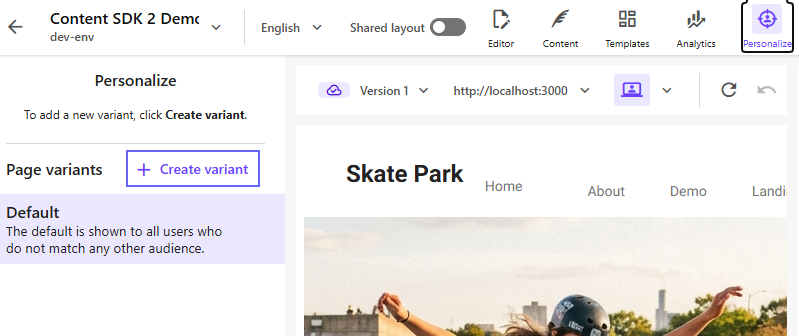
In SitecoreAI Pages, open the Home page and select the Personalize tab.
The side panel initially displays the Default variant, which represents the experience shown to visitors who do not match any audience.
From this panel, select Create variant to begin configuring an alternative experience.
4.2 Create the Variant
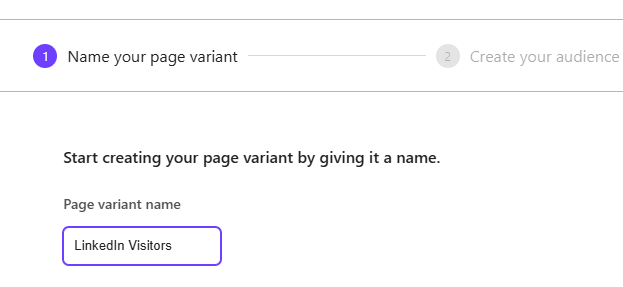
In the first step of the wizard, enter the following name:
- Variant name: LinkedIn Visitors
The name should clearly identify the purpose of the variant. After entering it, continue to the audience configuration.
4.3 Create the Audience
The audience defines the conditions visitors must meet to receive the variant.
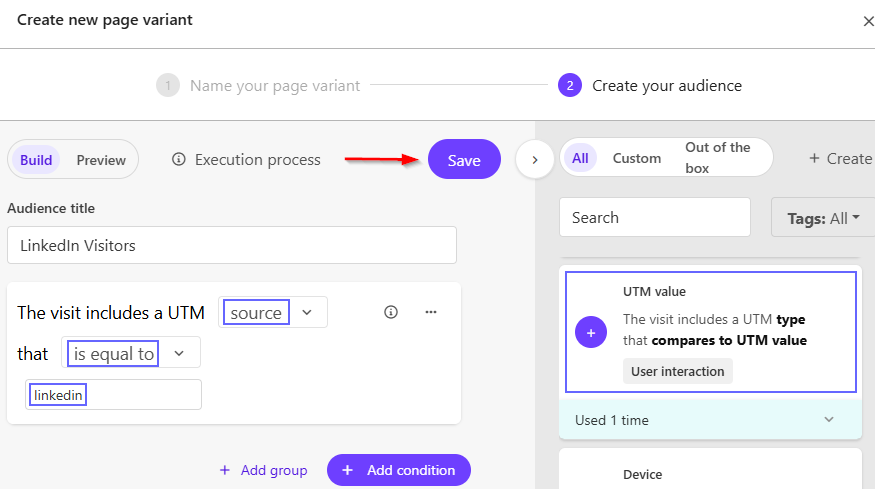
Use LinkedIn Visitors as the audience name and select Add condition.
From the list of available conditions, select UTM value and configure the following values:
- UTM type: source
- Comparator: is equal to
- UTM value: linkedin
The resulting condition indicates that the variant should be displayed when the visit includes a UTM parameter of type source with a value equal to linkedin.
The configured value must match the value used in the campaign URL. In this example, we use the lowercase value linkedin in both the audience condition and the URL that we will test later.
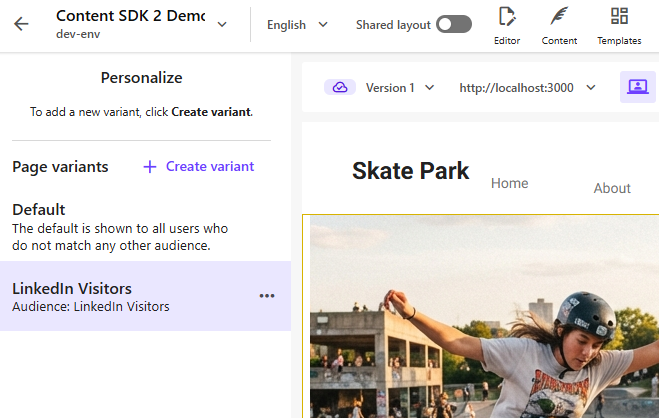
After saving the audience, return to the personalization panel. The following variants should now be available:
- Default
- LinkedIn Visitors
At this point, the audience is configured, but the new variant still uses the same content as the default experience. In the next section, we will create an independent datasource so that we can modify the variant without affecting Default.
5. Creating Variant-Specific Content
After creating the LinkedIn Visitors variant, it continues to use the same datasource as the Default experience. Before modifying its content, we must assign it an independent datasource.
This step is important because editing the original datasource directly would also affect the default experience.
5.1 Select the Component
In the Personalize panel, select the LinkedIn Visitors variant.
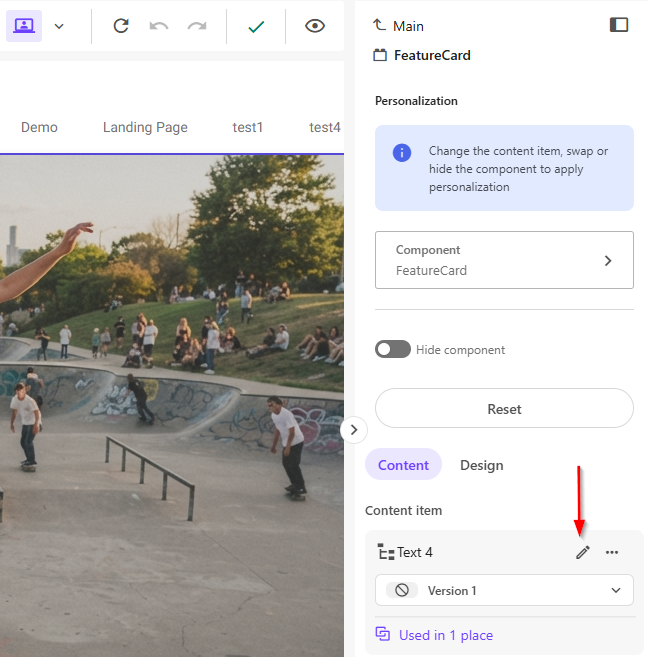
Next, select the FeatureCard component on the page canvas and open its content options.
The component initially uses the Text 4 datasource, which is also used by the Default experience.
5.2 Duplicate and Assign the Datasource
From the component options, select Duplicate and assign.
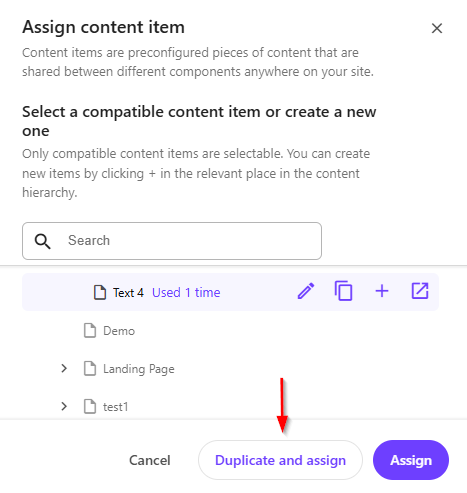
SitecoreAI creates a copy of the original datasource and assigns it only to the component in the selected variant. In our example, the new datasource is named:
- Text 4_var2
The Default experience continues to use Text 4, while LinkedIn Visitors uses Text 4_var2.
This separation allows us to edit the personalized content without modifying the original version.
5.3 Update the Personalized Content
With the new datasource assigned, update the component fields.
We will use the following content:
- Title: Welcome, LinkedIn visitors!
- Description: Discover how Sitecore Content SDK 2 and Next.js deliver personalized experiences.
- Image: an image selected for the LinkedIn experience.
- Alternative text: Skateboarder performing a trick
We can also update other component fields if we want to adapt the message more extensively to the campaign.
The variant now presents content related to Sitecore Content SDK 2 and Next.js, while the Default experience retains its original message.
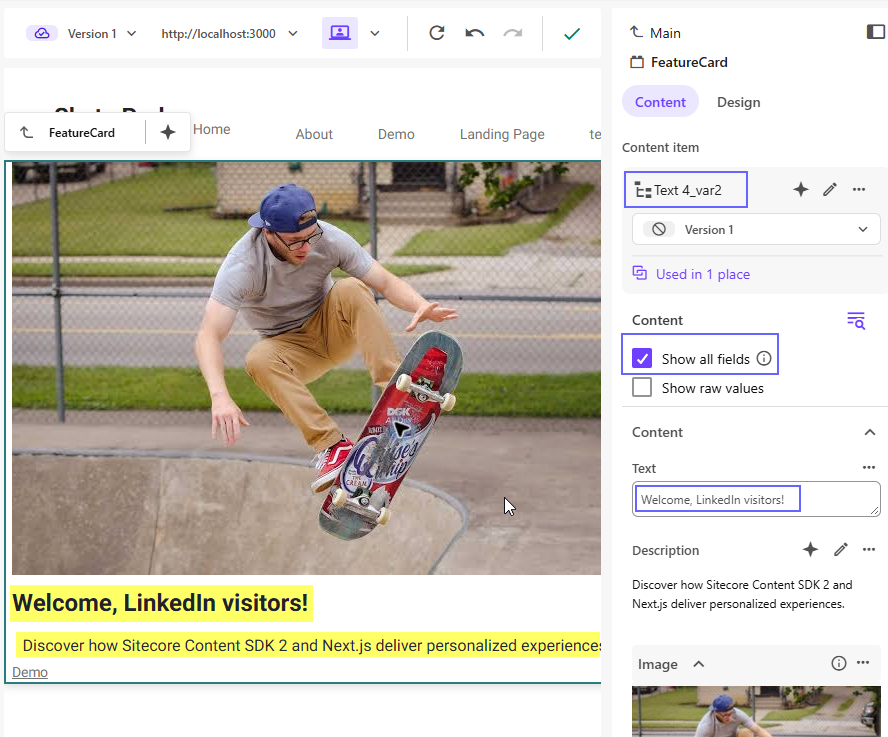
At this point, the variant and its content are configured. The next step is to preview the experience and publish the changes so they become available outside SitecoreAI Pages.
6. Publishing and Validating the Variant
After configuring the datasource and content for LinkedIn Visitors, select Publish in SitecoreAI Pages.
After starting the publication, open the publishing jobs section and locate the job associated with the Home page.
Wait until the process displays the COMPLETED status. This confirms that the page, its personalization configuration, and the related items were successfully sent to the delivery layer.
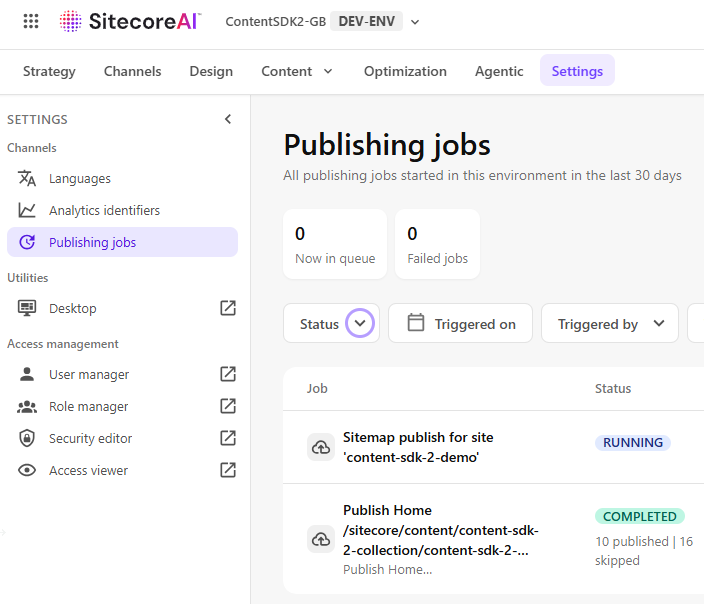
Once publishing is complete, open the local application using the URL containing utm_source=linkedin to validate the experience.
During our initial test, the application continued to display the Default content instead of the LinkedIn Visitors variant. The variant had been published correctly, which indicated that the issue was in the local application configuration.
In the next section, we will examine why Content SDK 2 behaves this way during development and how to enable personalization locally.
7. Enabling Personalization in the Local Environment
After publishing the variant, we opened the application using the URL containing utm_source=linkedin. However, the component continued to display the Default content.
The audience configuration and publishing process were correct, so we reviewed the personalization integration in the Next.js application.
7.1 Verify PersonalizeProxy
In src/proxy.ts, we confirmed that the application already included PersonalizeProxy in the Content SDK 2 proxy chain.
We also verified that its skip function returned false, meaning that the route was not excluded from processing.
However, this configuration alone does not enable personalization during development.
7.2 Default Content SDK 2 Behavior
Content SDK 2 globally disables personalization when the application runs with NODE_ENV set to development.
As a result, PersonalizeProxy stopped before evaluating the audience, even though it was correctly registered and its skip function allowed the route to be processed.
The skip option determines whether a specific request should be ignored, but it does not override the global personalize.enabled configuration.
7.3 Enable Personalization
To allow local testing, we opened sitecore.config.ts and added a personalize configuration section with enabled set to true.
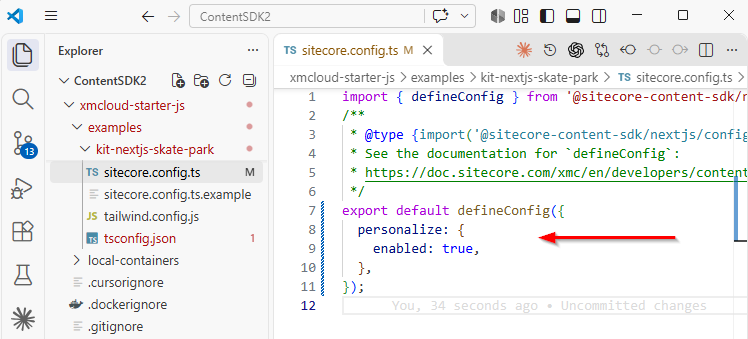
After saving the file, the application recompiled the configuration. If the development server does not detect the change automatically, it must be restarted.
With personalization enabled, PersonalizeProxy can retrieve the published personalization information, evaluate the request’s UTM parameters, and resolve the appropriate variant.
In the next section, we will validate both the personalized and default experiences.
8. Validating the Experiences
With personalization enabled in the local environment, we can verify that SitecoreAI selects the correct variant based on the request parameters.
We will perform two tests: one with the LinkedIn parameter and another without campaign information.
8.1 Validate the LinkedIn Experience
Open the following URL:
http://localhost:3000/?sc_site=content-sdk-2-demo&utm_source=linkedin
The request includes:
- UTM type: source
- UTM value: linkedin
These values match the condition configured for the LinkedIn Visitors audience.
As a result, the component displays:
- Title: Welcome, LinkedIn visitors!
- Description: Discover how Sitecore Content SDK 2 and Next.js deliver personalized experiences.
- The image and alternative text configured in Text 4_var2.
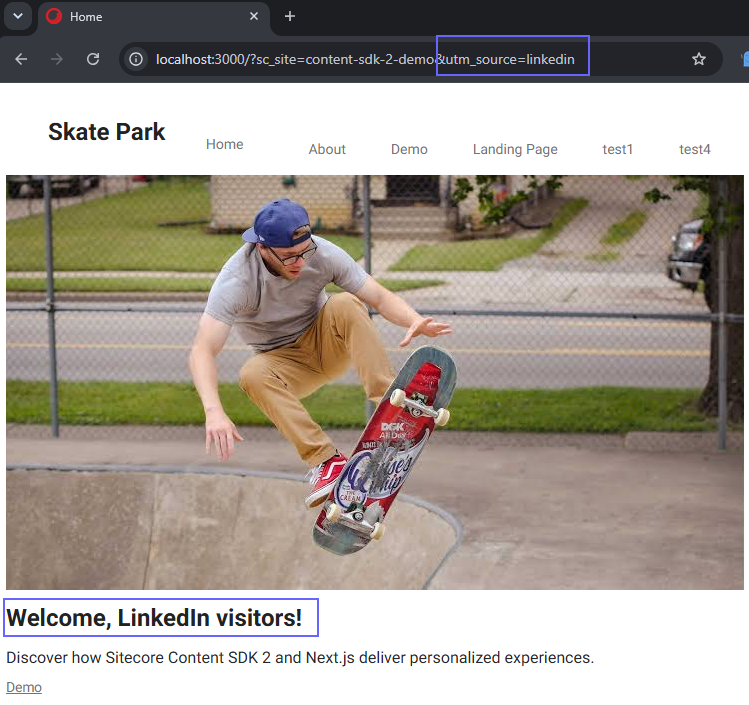
This test confirms that PersonalizeProxy detects the UTM parameter and that SitecoreAI returns the variant associated with the audience.
8.2 Validate the Default Experience
Next, remove the UTM parameter and open:
http://localhost:3000/?sc_site=content-sdk-2-demo
Because the request no longer meets the LinkedIn Visitors condition, SitecoreAI uses the Default experience.
The component displays the original content again:
- Title: High jumper
- Description: This is amazing
- Original datasource: Text 4
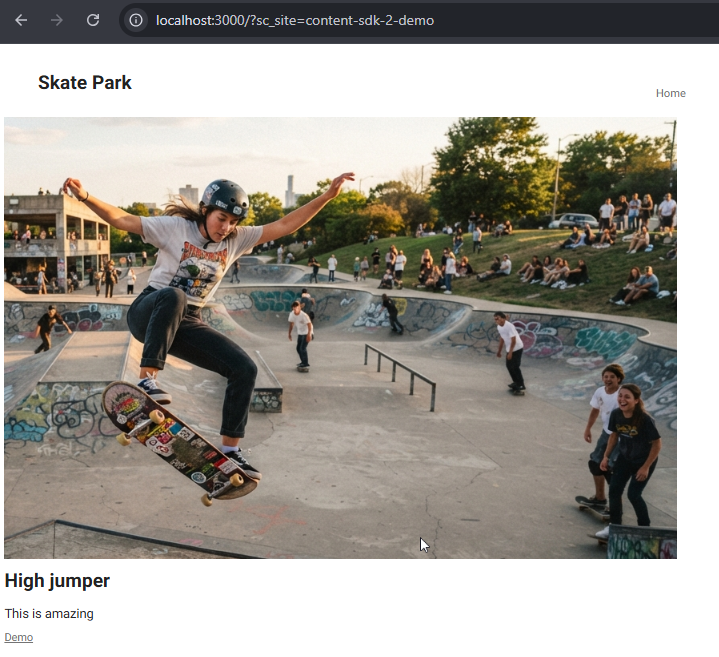
The comparison between the two requests demonstrates that personalization works conditionally:
| Request | Experience |
|---|---|
| URL with utm_source=linkedin | LinkedIn Visitors |
| URL without utm_source | Default |
| URL with another utm_source value | Default |
These tests confirm that the personalized variant is displayed only to the defined audience and that the default experience continues to work as a fallback.
Conclusion
In this third part of the series, we configured a complete personalized experience using SitecoreAI Pages and Sitecore Content SDK 2.
We created the LinkedIn Visitors variant, defined an audience using the UTM value condition, and assigned an independent datasource to the FeatureCard component. This allowed us to modify the personalized content without affecting the Default experience.
After publishing the variant, we enabled personalization in the local environment through the personalize.enabled configuration. Finally, we verified that visitors accessing the site with utm_source=linkedin receive the personalized content, while all other visitors continue to see the default experience.
This example demonstrates how SitecoreAI can maintain continuity between an external campaign and the content displayed on the website without requiring conditional logic inside the React components.
Although we used LinkedIn in this example, the same approach can be applied to other campaigns, traffic sources, and audience conditions.
In the next installment, we can explore how SitecoreAI records and analyzes the performance of personalized experiences to measure the impact of each variant.
Appendix A. Available Audience Conditions
As a reference, SitecoreAI Pages provides predefined conditions for identifying audiences based on visitor behavior, location, device, and visit context.
These conditions can be combined using logical operators to create more specific audiences. A page personalization audience can include up to five conditions.
Visit Conditions
| Number of page views | Evaluates how many times the visitor viewed a selected page during a specified number of previous days. |
| Page view | Checks whether the visitor viewed one or more selected pages during the current visit. |
| First page | Evaluates the page on which the current visit started. |
Geographic Conditions
| Country Region | Targets a specific region or state within a selected country. |
| Region | Checks whether the visitor is in one of the selected regions during the current visit. |
| Country | Checks whether the visitor is in one of the selected countries during the current visit. |
Date and Time Conditions
These conditions use the time zone configured for the organization.
| Date and time | Evaluates whether the visit occurs before or after a specific date and time. |
| Time of day | Evaluates whether the visit occurs before or after a specified time. |
| Visit day of the month | Compares the day number of the visit with a specified value. |
| Day of the week | Checks whether the visit occurs on one or more selected days of the week. |
| Month of visit | Checks whether the visit occurs during one or more selected months. |
Point of Sale Condition
| Point of sale | Checks whether the visit corresponds to one or more configured points of sale or site identifiers. |
User Interaction Conditions
| First referrer | Evaluates the URL that originally directed the visitor to the site during the current visit. |
| UTM value | Evaluates campaign information included in UTM parameters such as source, medium, campaign, or content. |
| Top Affinity | Checks whether an affinity value is currently the visitor’s highest-scoring interest. Affinities must be configured beforehand. |
| New or returning visitor | Distinguishes between visitors accessing the site for the first time and visitors who have returned. |
Device Conditions
| Device | Identifies the type of device used during the visit, such as a desktop computer, mobile phone, or tablet. |
| Operating system | Identifies the operating system used by the visitor. |
In the practical example covered in this article, we used UTM value to identify visits where utm_source has the value linkedin. The remaining conditions can be applied by following the same audience creation process demonstrated earlier.
References
Personalize — SitecoreAI Documentation
A general introduction to page personalization, audiences, variants, and performance analysis.
Creating an Audience — SitecoreAI Documentation
Explains how to build audiences using conditions and condition groups in SitecoreAI Pages.
Specifying Variables for Conditions — SitecoreAI Documentation
A reference for the available conditions and the values that can be configured for each one.
Personalizing Your Content — Sitecore Developer Portal
Recommendations for planning audiences, creating variants, and choosing between page and component personalization.
Upgrade Content SDK 1.5.1 Next.js Apps to Version 2.0
Describes the changes introduced in Content SDK 2, including the configuration of PersonalizeProxy and the proxy.ts file.
Personalization in JSS Next.js Applications
Explains the general personalization architecture, variant selection, and the use of internal personalized routes in Next.js applications.