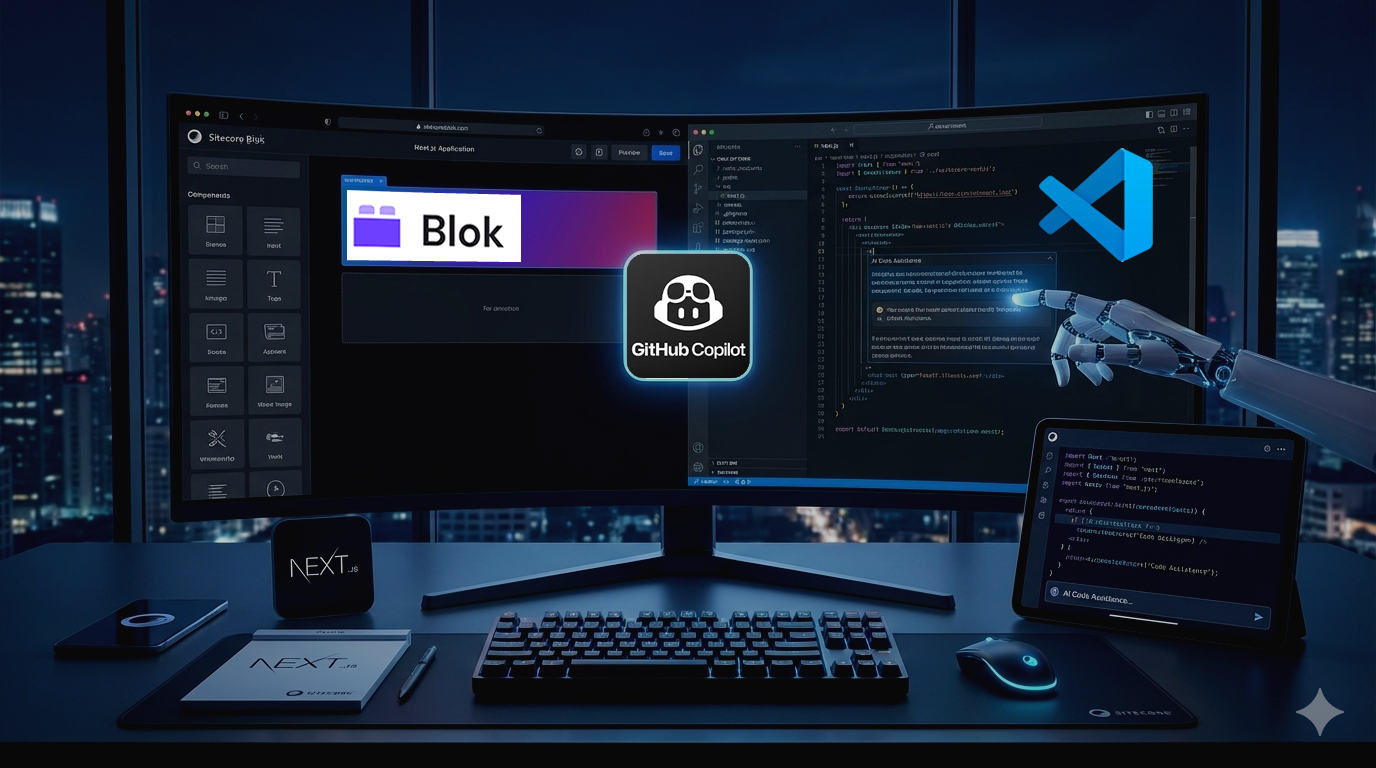
In this blog, we’ll explore what Blok is, walk through a tutorial to create a Next.js app using Blok, running it locally, and even leverage Blok Model Context Protocol (MCP) integration to generate UI components with AI-powered prompts inside VS Code.

What is Sitecore Blok?
Sitecore Blok is Sitecore’s new official design system. It provides a curated set of reusable UI components, design tokens, and patterns that help developers build applications with a consistent Sitecore look and feel. Instead of creating UI components from scratch, Blok allows teams to focus on functionality while relying on a shared visual language already used across Sitecore products.
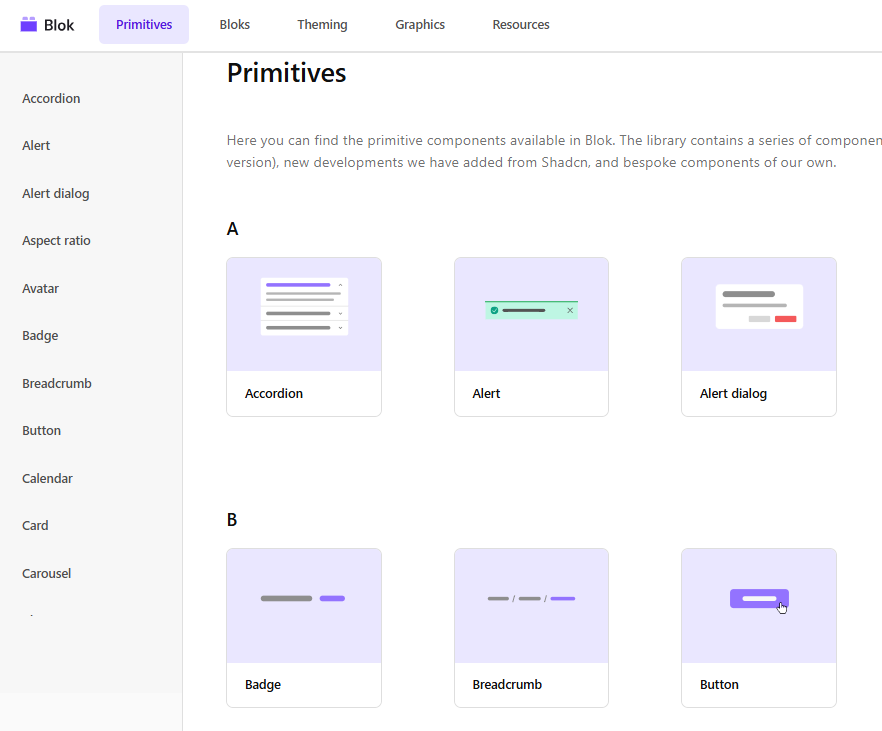
Blok is built for modern front-end development, using React and Tailwind CSS through the ShadCN UI approach. This makes it easy to integrate into frameworks like Next.js while keeping the flexibility developers expect from today’s tooling. On top of that, Sitecore has introduced an AI-friendly integration through MCP (Model Context Protocol), enabling tools like GitHub Copilot to understand and generate Blok-based components.
Creating a Next.js App with Blok
To get started, you need Node.js 16+, Npm 10+ and a basic Next.js setup. First, initialize the ShadCN UI system, which Blok is built on:
npx shadcn@latest initThis step prepares your project by configuring Tailwind, setting up component paths, and creating the required configuration files.
Then, select Next.js, input the project name: my-blok-app, and select Neutral color.
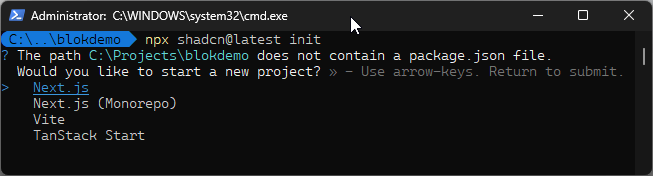
Success!
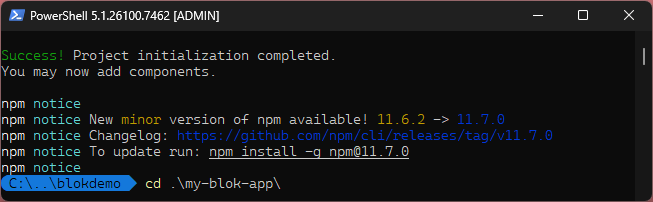
Next, let’s add the Button Component
cd my-blok-app
npx shadcn@latest add https://blok.sitecore.com/r/button.json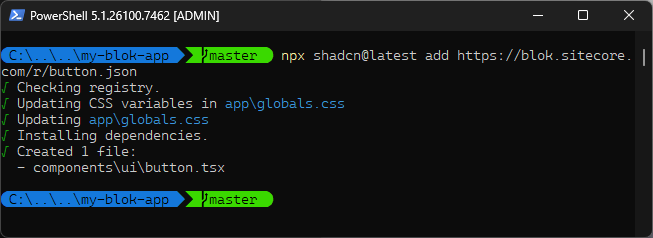
You can add one by one the components that you will use in the app. You can find a detailed guide for each component at https://blok.sitecore.com/primitives
Running the App Using the Button Component
To confirm everything is working, let’s try the button component into your main page.
- Open the my-blok-app using Visual Studio
- In the Explorer Panel on the left, Navigate to my-blok-app\app\page.tsx
- Delete all of the code of page.tsx and paste the following code:
import { Button } from "@/components/ui/button";

export default function Home() {
  return (
    <div>
      <Button variant="default">Primary</Button>
      <Button variant="outline">Outline</Button>
      <Button variant="ghost">Ghost</Button>
      <Button variant="link">Link</Button>
    </div>
  );
}
Then, On the Visual Studio Terminal, start the development server:
cd my-blok-app
npm run dev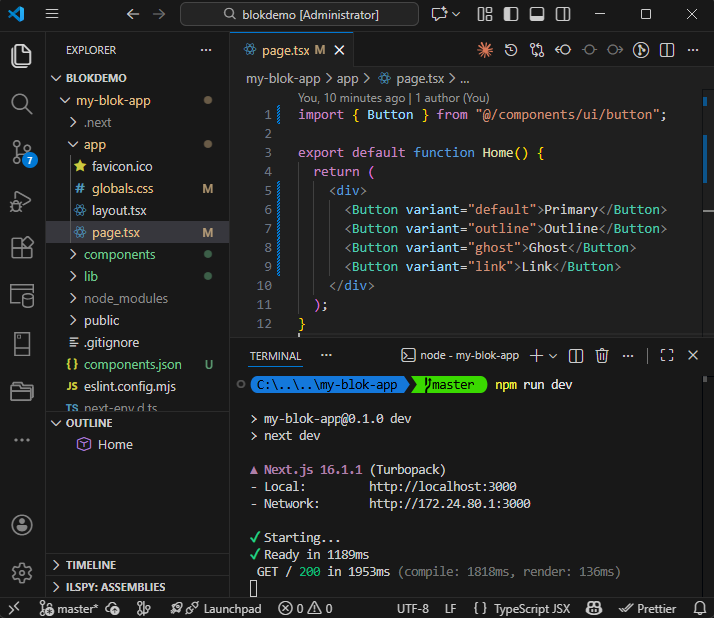
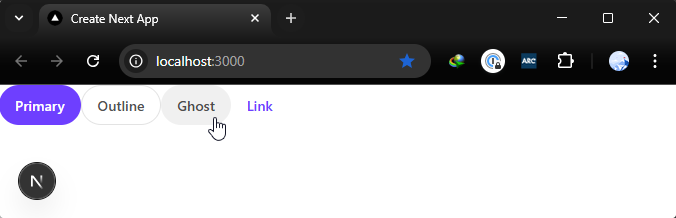
When you open the app in your browser http://localhost:3000, you should see a Next.js page with some Sitecore-styled button rendered correctly. This confirms that Blok is fully integrated and ready to use.
Using Blok MCP with VS Code and Copilot
One of the most powerful features around Blok is its MCP server. MCP allows AI tools to understand external systems, in this case, the Blok component registry.
By configuring the Blok MCP in your environment and connecting it to an AI assistant like GitHub Copilot in VS Code, you can generate UI using natural language prompts. The AI knows which Blok components exist and how they are used.
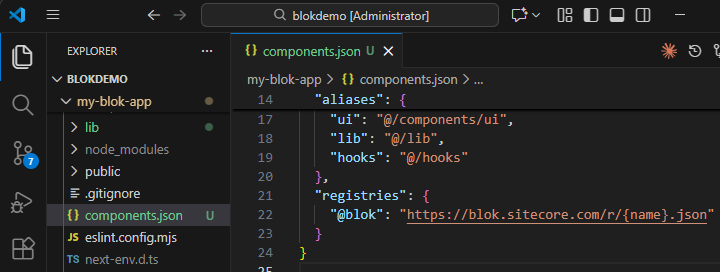
Configure the Blok registry
Add/replace the following to your components.json
"registries": {
    "@blok": "https://blok.sitecore.com/r/{name}.json"
 }
To initialize an MCP project for VS Code using the shadCN CLI, on the Visual Studio Terminal, run the following commands:
npx shadcn@latest mcp init --client vscode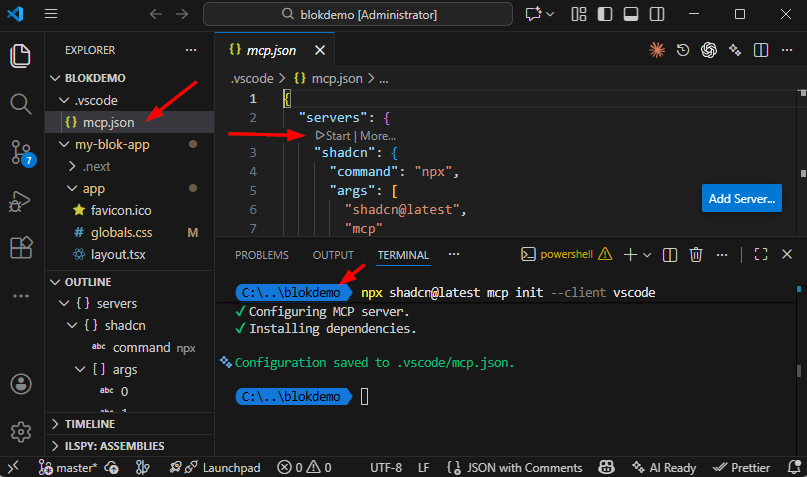
Open .vscode/mcp.json and click Start next to the shadcn server.
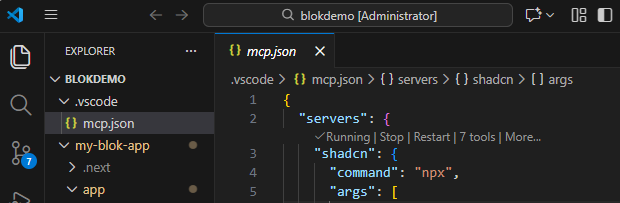
After setting up the MCP connection, you can open Copilot Chat and run a prompt such as:
Create a contact form using components from the shadcn registry. Add padding around the form.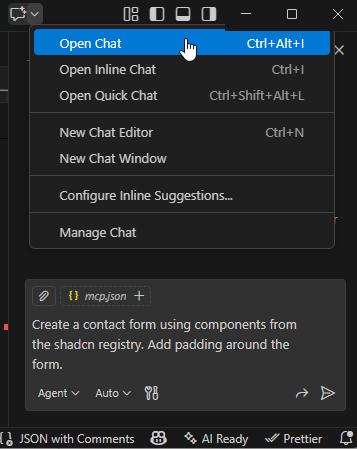
At first, we’ll Enable auto approve to let Copilot execute all commands and avoid asking for confirmation every time.
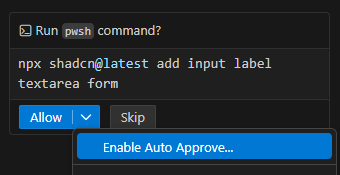
When it finishes we could see that Copilot created some components and modified the api/contact/route.ts
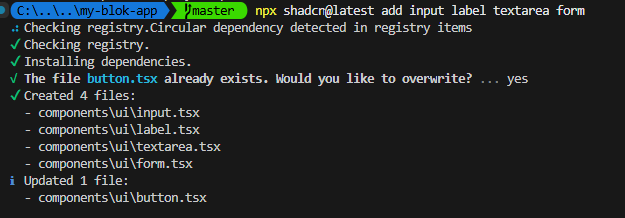
If we run the app
npm run devWe’ll see the form created.
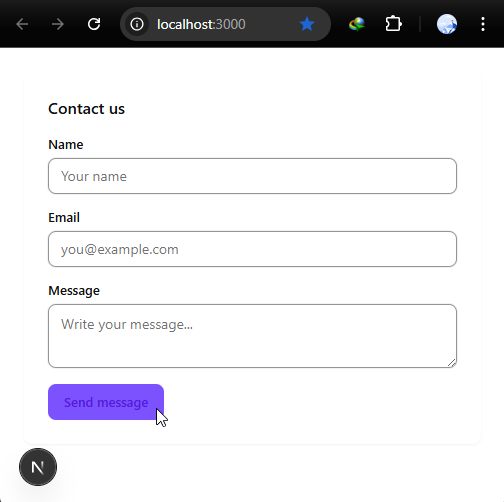
Copilot will respond by generating React code that uses Blok components to assemble the form, including layout, typography, and structure consistent with the design system.
This workflow dramatically speeds up UI development, especially for prototyping and scaffolding pages.
Conclusion
Sitecore Blok makes it easier to build modern, consistent user interfaces aligned with the Sitecore ecosystem. By combining a robust design system with React and Tailwind, it fits naturally into frameworks like Next.js.
When paired with MCP and AI tools such as GitHub Copilot, Blok goes a step further allowing developers to describe what they want and let AI generate ready-to-use UI code. The result is faster development, fewer repetitive tasks, and a smoother experience from idea to implementation.
If you’re building Sitecore related applications or Marketplace extensions, Blok is a strong foundation and with AI in the loop, it becomes an even more powerful one.